The wowlua extension for VS Code checks your addon as you type, explains the WoW API on hover, runs your tests from the Testing view, and debugs your addon in wowlua's emulated WoW client with the game's screen beside your code. This page sets it up and walks through what it does.
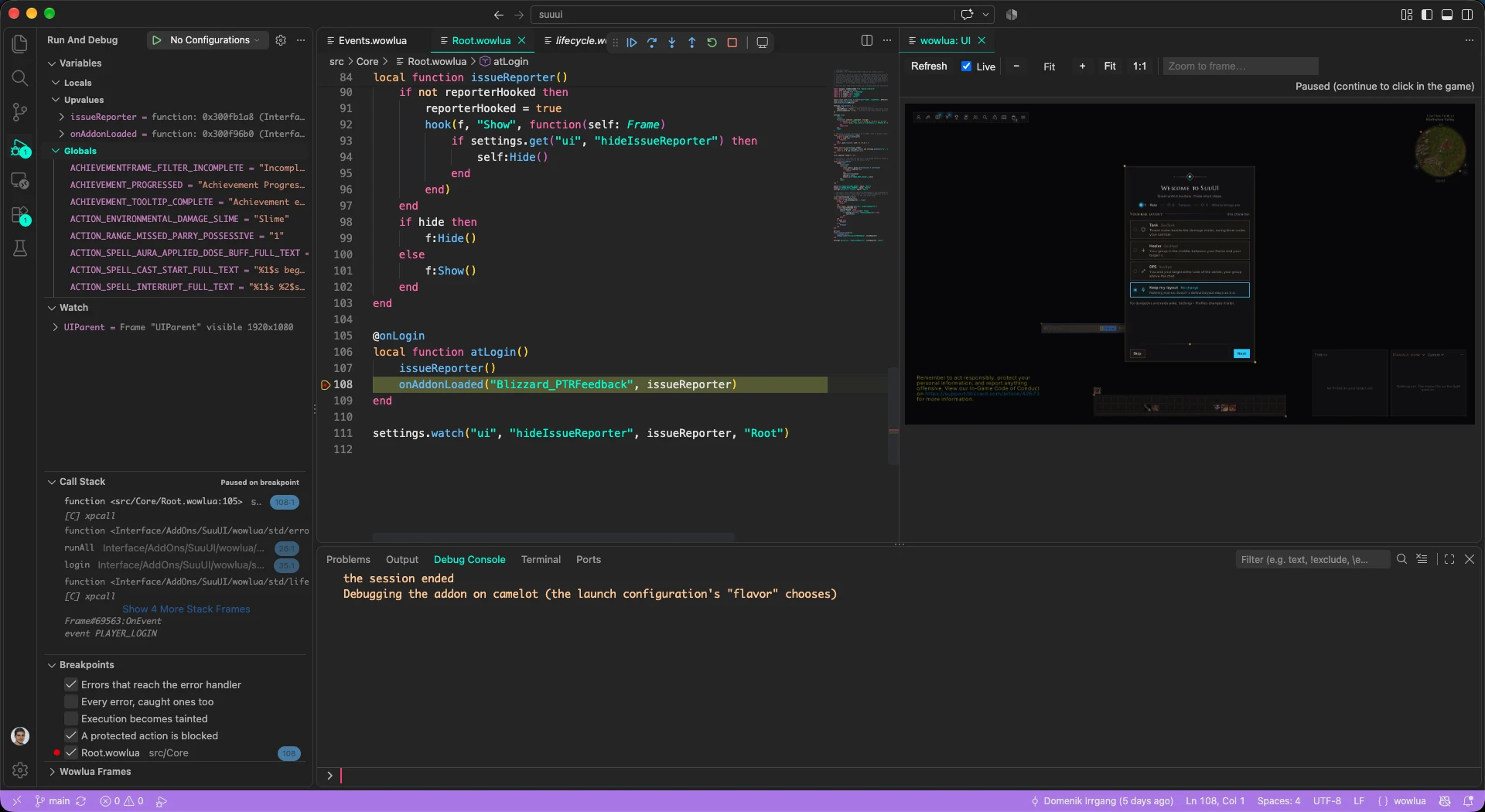
An addon paused at a breakpoint in an @onLogin handler: the call stack
back to event PLAYER_LOGIN on the left, the game's screen in the
wowlua: UI panel on the right.
Install the extension
Install wowlua from the Visual Studio Marketplace: search for wowlua in VS Code's Extensions view, or run
$ code --install-extension wowlua.wowlua
It runs the wowlua binary (0.10 or newer) for checking and debugging, so
install wowlua first. It needs VS Code 1.88 or newer.
From the repository
The extension's source is in the wowlua repository, in
editors/vscode. To try a change, link it
into your extensions folder from a clone and reload VS Code:
$ ln -s "$(pwd)/editors/vscode" ~/.vscode/extensions/wowlua
Or package it as a .vsix file with npx @vscode/vsce package in
editors/vscode, and install that file with Extensions: Install from
VSIX….
Then open your addon's folder, the one with wowlua.json. .wowlua files
are colored, Cmd+/ (or Ctrl+/) toggles -- comments, brackets and quotes
close by themselves, and blocks indent as you type.
Errors as you type
The extension starts wowlua lsp, which checks your package with the edits
you haven't saved yet. Errors and warnings show in the Problems view a moment
after you stop typing, and at once when you save. They are the errors
wowlua check prints, checked against the API of the flavors you build for,
so a misspelled field, an unknown API function or a wrong argument shows
before you log in:
class Ledger balance: number = 0end local ledger = Ledger.new()print(ledger.balanse)error[E2003]: `Ledger` has no field or method `balanse` ┌─ src/main.wowlua:6:14 │ 6 │ print(ledger.balanse) │ ^^^^^^^ here error: aborting due to 1 previous error
A package wowlua can't load, such as one with a broken wowlua.json, shows
one error that says why, since nothing in it can be checked.
The WoW API, explained where you use it
Hover a name to see its type and its --- doc comment. For a game API
function, such as UnitHealth or C_Spell.GetSpellInfo, the hover also says
what the function does, what its parameters and results mean, and links to
its warcraft.wiki.gg page. Completion shows the same text. Lua's own functions
(string.format, pairs) and every function of the wowlua:* modules are
explained too. The WoW API reference has the same
descriptions, searchable.
Complete, jump, rename
- Completion lists the names in scope and the game's API, and after
.or:a value's fields and methods. - Go to Definition (
F12, orCtrl/Cmd+ click) goes from a name to where it is defined, in your files or in the game's API. - Find All References (
Shift+F12) lists every place in your workspace that uses a name: locals, functions, classes, methods,self.countfields, types, imports and globals, in every file and in your tests. - Rename Symbol (
F2) renames a name everywhere, across files and the packages of your workspace. When a rename can't be done safely, because it would break an override or an interface, clash with a name already taken, or change a name an XML file uses, wowlua says why and changes nothing. - Format Document formats as
wowlua fmtdoes, with your package'sfmtsettings, even when another formatter is your default. - The outline and breadcrumbs list a file's functions, classes with their methods, locals, enums and types.
See what your code is
- Colours by meaning: types, functions, parameters, fields and
decorators each get their colour from the language server, and words
like
class,importortypeare colored as keywords only where they are keywords (local type = 1stays a name). - Folding folds functions, blocks, classes, tables over several lines, runs of comments and of imports.
- Inlay hints show the type of a
localyou declared without one, as the checker sees it:local doubled = helper(2)shows: numberafterdoubled. - Quick fixes (
Ctrl/Cmd+., or the light bulb) apply the fixes a warning comes with, such as removing an unused local. - References above functions: each function shows how many places use it; click to list them.
Tests in the Testing view
Your *.test.wowlua files and their @tests show in VS Code's Testing view.
Run a file or a single test with a click, or use "Run test" and "Debug" above
each test in the editor. Each result shows at its test, and a failure at the
line it failed on, with the flavor when several run. The cases of a @cases
test appear as they run.
Run with Coverage shows which lines, branches and functions of your addon the tests ran, in the editor's gutter. wowlua: Show Coverage Report opens the HTML coverage report in a tab; click a line number there to open that line of the source. Testing your addon covers writing the tests.
Debug in the emulated client
Press F5 to run your addon or a test in wowlua's emulated WoW client, with
no game running. Add launch configurations to .vscode/launch.json:
{ "configurations": [ { "type": "wowlua", "request": "launch", "name": "wowlua: run the addon", "addon": true, "flavor": "camelot", "profile": "stormwind" }, { "type": "wowlua", "request": "launch", "name": "wowlua: debug a test", "test": "tests/options.test.wowlua", "filter": "options window" } ]}| Attribute | Meaning |
|---|---|
test, filter |
A test file to run, and only its tests whose names contain filter |
addon |
true runs the addon itself, logged in, instead of a test file |
flavor |
The flavor to run; without it, the package's only flavor, or VS Code asks which |
profile |
A world profile to start in: tests/profiles/<name>.json, a character with its gear and bags and the world around it |
clock |
realtime (the default: frames as fast as the game's maxFPS and vsync settings let them, time moving as it does) or manual (time stands still until asked) |
stopOnEntry |
Stop before the first line runs |
debugBlizzardUI |
Step into Blizzard's UI code too |
wowluaPath |
The wowlua command for this configuration, over the wowlua.path setting |
Set line breakpoints as usual in .wowlua and .lua files, with conditions,
hit counts and log messages (count is {count}). Function breakpoints, in
the Breakpoints view, also stop on what the game does:
| Function breakpoint | Stops |
|---|---|
MyAddon.db:Reset |
When that function of yours is entered |
C_Timer.After |
When Lua calls that game API function |
event:PLAYER_LOGIN |
Before the event's first handler runs; event:* for every event |
script:MyButton:OnClick |
Before that frame's script runs; script:OnClick for every frame |
timer |
Before a timer's callback runs |
The exception breakpoints stop on errors that reach the error handler, on every error, at the moment your code becomes tainted, and when a protected action is blocked.
Stepping follows the game. Step into frame:Show() and you are in its
OnShow; step out of an event handler and you stop in the next handler of
the same event. The call stack shows why your code runs
(event BAG_UPDATE → MyFrame:OnEvent → your function). Variables show
their taint (string · tainted by MyAddon), what a secret value hides, and
a frame's type, size, points and children.
The game's screen, beside your code
While a session runs, the wowlua: UI panel shows the screen as the client draws it, with your WoW installation's textures and fonts. It redraws at every stop and step, and once a second while the game runs.
- Click in it to click in the game; right-click for the right button. The
frame under the pointer gets the click, so its
OnClickbreakpoints stop. - Zoom with
Ctrl/Cmdand the wheel, a pinch or the panel's buttons, or pick Zoom to frame… and type a frame's name. Zoomed in, the screen is drawn sharper. Pan with the scrollbars, the wheel, or a drag with the middle button orSpaceheld. - The wowlua Frames view in the debug sidebar lists the frames on screen with their type, size and text. Select one to outline it in the panel.
In the Debug Console, a line that starts with / is a slash command, as if
typed in the chat (/myaddon, /invite Jaina Proudmoore). Any other line is
Lua, run in the game, or in the stopped function while paused: count = 0
sets its local.
Settings
| Setting | Default | Effect |
|---|---|---|
wowlua.path |
wowlua |
The wowlua command the extension runs, found on your PATH |
wowlua.languageServer |
true |
Check as you type. Off leaves only the colors and debugging. |
wowlua.ui.autoOpen |
true |
Open the wowlua: UI panel when a debug session starts |
wowlua.ui.refreshInterval |
1000 |
How often the panel redraws while the game runs, in milliseconds; 0 for stops only |
wowlua.testCodeLens |
true |
Show "Run test" and "Debug" above each test |
wowlua: Restart Language Server restarts the language server; its log is in the wowlua Language Server output. wowlua: Show UI opens the panel.